Get Into Mobile Only Venues: 5 Steps to Enter Without Paper

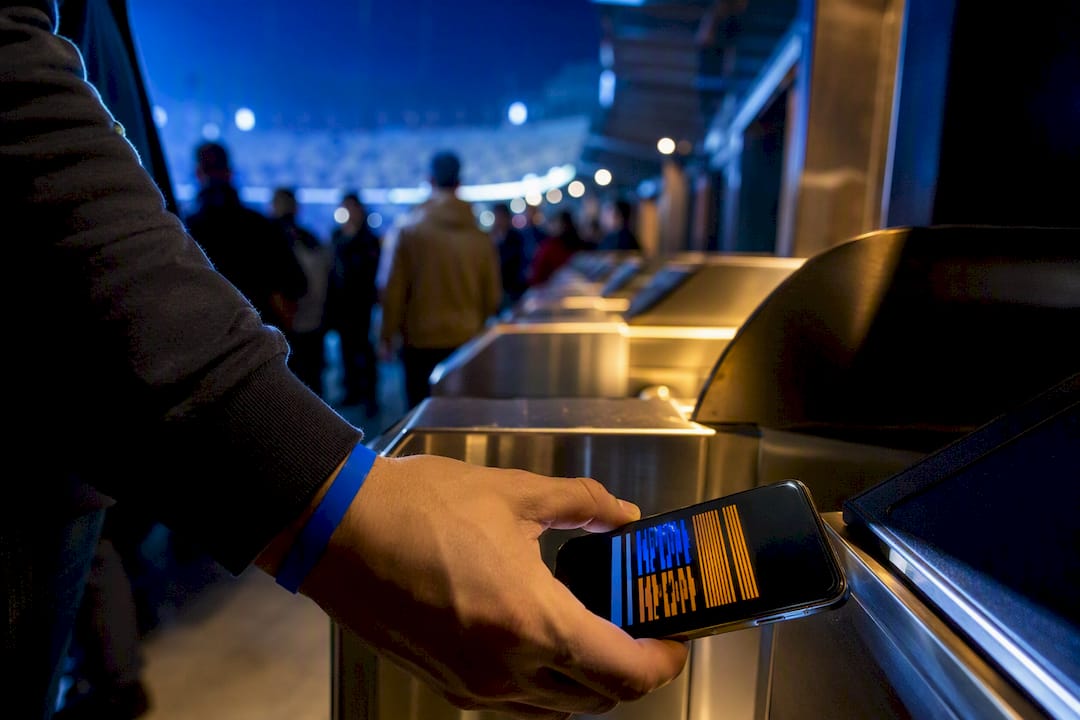
Mobile-only means your phone is the only valid way to show your ticket. Screenshots and printouts won’t scan at the gate. Before you head out, open your ticket in the venue’s official app or ticketing account and add it to Apple Wallet or Google Wallet if that option is offered. If you don’t have a smartphone or worry about your battery, call the box office in advance to arrange an alternative entry method.
TL;DR:
Most mobile-only tickets use rotating barcodes that refresh every 30 to 60 seconds, making static screenshots or printouts invalid at the gate.
Adding tickets to your digital wallet and testing offline access before arriving ensures smoother entry and prevents technical issues.
Transferring tickets early and confirming recipients accept and save their tickets to their wallet reduces entry delays during arrival.
Dead batteries, poor signal, or apps that won’t log in can often be resolved by contacting the box office ahead of time or using browser-based access.
Venue policies for mobile-only entry vary depending on the event promoter or ticketing platform, so always check event-specific delivery details beforehand.
Table of Contents
What Are Mobile-Only Venues and Why Do They Use Them?
Mobile-only ticketing means the venue accepts entry exclusively through a smartphone. There’s no print-at-home PDF, no physical stub mailed to your house. Your ticket lives inside an app, a ticketing platform account, or a digital wallet, and that’s the only format the scanner at the gate will recognize.
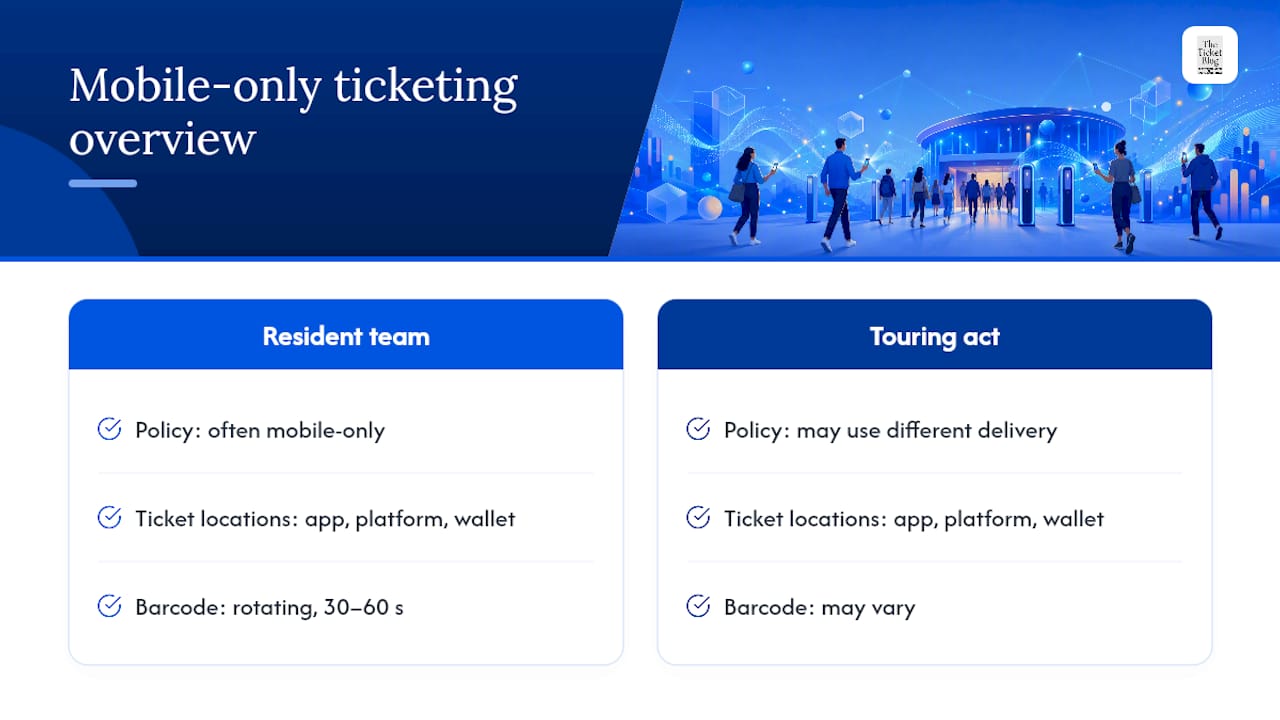
The technology behind this is a rotating barcode. Instead of a static code that anyone could screenshot and forward, the barcode refreshes automatically, commonly every 30 to 60 seconds. That constant change is what makes a photo or printout worthless at the door. Some systems go a step further and tie the ticket to your logged-in account, so the barcode only displays for the verified ticket holder.
Digital tickets typically live in one of three places: the venue’s own app, your account on the ticketing platform you bought through, or your phone’s wallet. Not every event at the same building follows the same rule, either. A resident sports team might run mobile-only for every home game, while a touring concert renting that same arena could use a different delivery method entirely.
How Do You Access and Present a Mobile Ticket?
Getting your ticket ready takes a few minutes, and doing it before you leave home saves you from fumbling with spotty service at the gate. Here’s the sequence that works across most venues:
Log into your account. Use the app you purchased through, whether that’s the venue’s own app or a third-party ticketing platform.
Find your event. Tickets usually sit under an “My Tickets” or “Upcoming Events” tab.
Open the ticket to reveal the barcode. This step matters. Many venues only activate the live barcode once you view it, sometimes within a set window before the event starts.
Add it to your wallet. If Apple Wallet or Google Wallet support is available, tap that option so the barcode caches on your device even without a signal.
Test offline access before you leave. Turn on airplane mode briefly and confirm the ticket still displays.
On iPhones, the wallet pass shows up automatically with your other passes and boarding cards. On Android, Google Wallet does the same, though some venues route you through their own app for the initial add. If you’re holding tickets for a group, decide now whether everyone gets their own transfer or whether one phone handles entry for all.
Transfers, Sharing, and Group Entry Best Practices
Ticket transfers let the original buyer send individual tickets to each person in the group, so everyone walks in on their own phone instead of waiting on one device at the gate. The process usually runs through the same app or account you bought from: you enter the recipient’s email or phone number, they accept the transfer, and the ticket moves into their account.
Transfer as early as you can, especially if your group is arriving separately or at different times. Waiting until the parking lot invites problems if the app glitches or a signal drops.
A few things to keep in mind before you count on a transfer going smoothly:
Some events disable transfers until a set window closer to the event date.
Recipients need their own account set up on the same platform to accept the transfer.
Confirm each person actually received and accepted their ticket, don’t assume the send went through.
Save transferred tickets to a wallet immediately once accepted, rather than relying on an app you’ll open later.
What Not to Do: Screenshots, PDFs, and Printouts That Won’t Get You In
A screenshot captures one frozen moment of a barcode that’s designed to keep changing. By the time you reach the scanner, that code has already expired, so the gate reader shows an error no matter how sharp the image looks. The same goes for PDFs attached to a confirmation email and paper printouts of a barcode. All of them are static, and mobile-only systems are built specifically to reject static formats.
This isn’t a glitch. It’s the point. Dynamic barcodes exist to stop the exact kind of fraud that used to run wild on the secondary market, where one legitimate ticket got copied and sold to multiple buyers. Your only reliable options are the official app, your mobile wallet, or a box office lookup if something goes wrong on-site.
Troubleshooting and Last-Minute Fixes at the Gate
Most entry problems trace back to something fixable before you ever leave the house. Charge your phone fully, add every ticket to your wallet, and test offline mode ahead of time so you’re not troubleshooting in a parking lot with one bar of signal.
If something still goes wrong on event day, here’s where to start:
Battery dies: Head to the box office. Some venues can look up your order and print a replacement, though this varies by venue, so contacting them in advance is smart if you know your phone runs low fast.
No smartphone at all: Call the box office before the event. Alternatives exist at some venues, but you need to ask ahead rather than hope for one at the gate.
App won’t log in: Look for a passwordless login option, many venues send an email code, or try accessing your ticket through a mobile browser instead of the app.
Poor signal at the venue: This is exactly why you open the ticket and add it to wallet before arriving. The barcode caches locally once viewed.
Pro Tip: Open your ticket at home while you still have a strong wifi connection, then confirm it’s visible in airplane mode. That five-second test tells you whether you’re covered before you ever leave the driveway.
Why the Same Venue Can Use Different Ticketing Methods
The venue itself doesn’t always control ticketing policy, as outlined in the venue’s official rules which show how event-specific policies can differ. Promoters renting the space, or the ticketing partner they contract with, often set the rules for their specific event. That’s why a hockey team’s home games can run strictly mobile-only while a concert booked into that same arena a week later hands out a mix of mobile and will-call tickets.
Some venues, like the St. Louis Blues at Enterprise Center, commit fully to mobile entry for their own games, but that doesn’t guarantee every event at the building follows suit. Always check the event page or your order confirmation email for the delivery method tied to your specific purchase, not just the venue’s general policy.
The Ticket Blog Checklist to Avoid Entry Problems
A little prep at purchase saves a lot of stress at the gate. Run through this before you buy, and again the morning of the show:
At purchase: Confirm the delivery method listed on the event page, note any transfer window restrictions, and save your confirmation email somewhere you’ll find it fast.
On event day: Add tickets to your wallet, charge your phone, transfer tickets to your group early, and bring ID if the venue requires it for the account holder.
Technical setup: Create a home screen shortcut to your wallet pass, set up passwordless login if the platform offers it, and test offline mode before you leave.
Pro Tip: If you’re managing tickets for a group, transfer them the night before rather than the morning of. It gives everyone time to troubleshoot a failed acceptance while you still have decent signal and time to spare.
Our ticket barcode guide breaks down exactly how these rotating codes work if you want the deeper technical picture.
Accessibility Considerations for Mobile-Only Entry
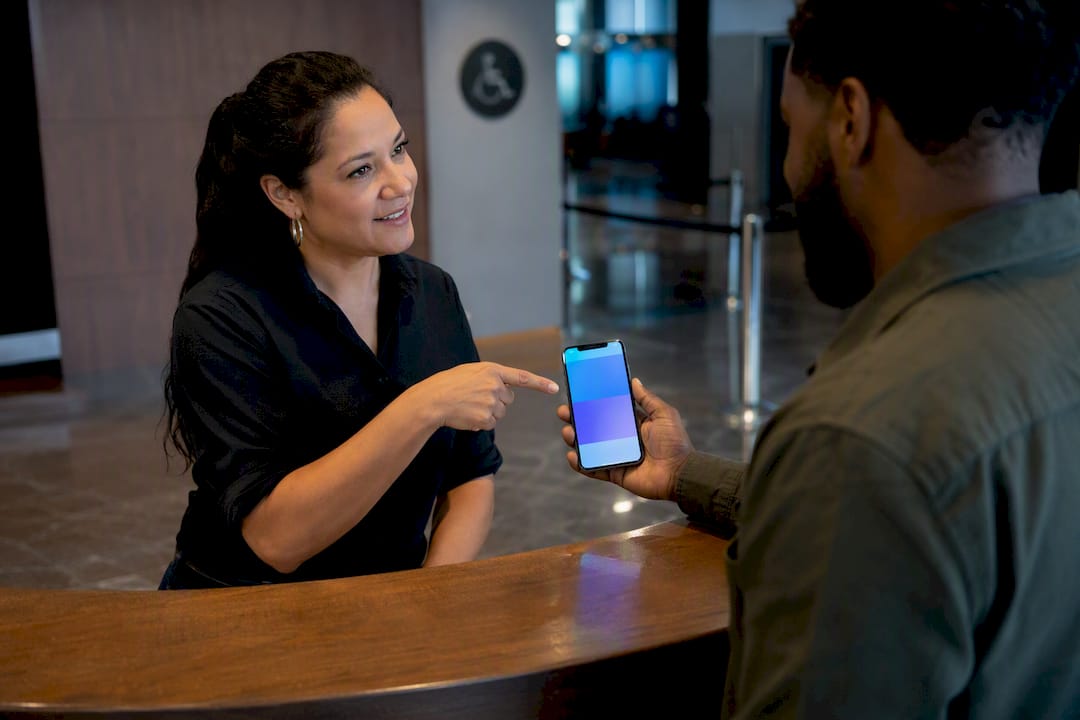
Mobile-only policies work well for most attendees, but they create real friction for people who don’t own a smartphone, have vision or dexterity limitations, or rely on assistive technology that doesn’t play well with every ticketing app. If you fall into any of these categories, the single most useful thing you can do is contact the venue’s accessibility or guest services line before the event, not the day of.
Venues that require mobile entry generally still maintain accommodations. That might mean a box office representative walks you through the app at will-call, a companion ticket gets transferred to a caregiver’s phone, or staff assist with entry directly at an accessible gate. None of these options are guaranteed to be advertised prominently on the event page, so asking directly is worth the extra step.
For screen reader users, most major ticketing apps support basic accessibility features, but third-party or smaller venue apps vary widely in quality. Test the app well before event day rather than discovering a compatibility issue at the gate. If the app proves unusable, the passwordless email or mobile browser fallback some venues offer can serve as a workaround, since browser-based ticket pages often render more predictably with assistive tools than a dedicated app.
If you use a wheelchair or have mobility limitations, pair your mobile ticket prep with your seating request at the time of purchase. Accessible seating and mobile delivery are handled separately in most systems, and confirming both together avoids a last-minute scramble.
Publisher Perspective: Where We Land on Mobile-Only Tickets
We favor mobile-only entry, mainly because rotating barcodes make counterfeit tickets far harder to sell and buyers far harder to scam. That said, the shift isn’t frictionless. Attendees without smartphones, older fans less comfortable with apps, and anyone with a dead battery on show day deserve real alternatives, not just a box office phone number buried on a help page. Use our transfer guide and checklist above to prepare properly, and you’ll rarely need a backup plan at all.
— The Ticket Blog
Get More Ticket Guides and Deal Alerts From The Ticket Blog
Mobile-only entry is just one piece of getting into a show without a headache. The Ticket Blog breaks down the parts other sites skip, like how instant download tickets actually work, what a transfer window really restricts, and which venues quietly still allow box office backups.

If you’re prepping for an upcoming show, run through our summer concert ticket buying checklist before you buy. It covers delivery method, transfer timing, and what to screenshot for your own records (your confirmation email, not the barcode). Head to The Ticket Blog now to browse current guides and catch fresh deal alerts before your next event goes on sale.
Sources
Recommended


Comments