Stop Losing Entry Over Screenshots: 3 Ways Mobile Tickets Actually Work

Screenshotting mobile tickets is unreliable for most modern events because barcodes refresh every few seconds and many tickets are locked to your account. The safer bet is adding your ticket to Apple Wallet or Google Wallet, or keeping it live in the issuer’s app. The one exception: older, static PDF or instant-download tickets that never refresh still work fine as screenshots.
TL;DR:
Screenshots of modern mobile tickets with moving barcodes almost never work at the gate because the QR codes refresh every few seconds or every 15 seconds.
Static tickets like older PDFs or instant downloads can be screenshot and scanned as they feature unchanging barcodes.
Storing tickets in Apple Wallet or Google Wallet provides a safer, more reliable entry method compared to screenshots, which lack the live refresh capability.
Using the issuer’s app and adding tickets early ensures they are accessible offline, reducing last-minute access issues or connectivity problems.
Sharing tickets via official transfer features is recommended over forwarding screenshots, as it keeps the barcode active and linked to the new user’s account.
Table of Contents
Why Screenshotting Mobile Tickets Often Fails at the Gate
The barcode on your screen isn’t always the same barcode it was thirty seconds ago. Ticketmaster uses what it calls a “moving barcode,” a code that refreshes roughly every 15 seconds specifically so a captured image goes dead almost instantly. AXS runs the same play with its Mobile ID system, where the QR code changes every few seconds as a built in defense against resale fraud. A screenshot freezes one frame of a barcode that was designed to keep moving.
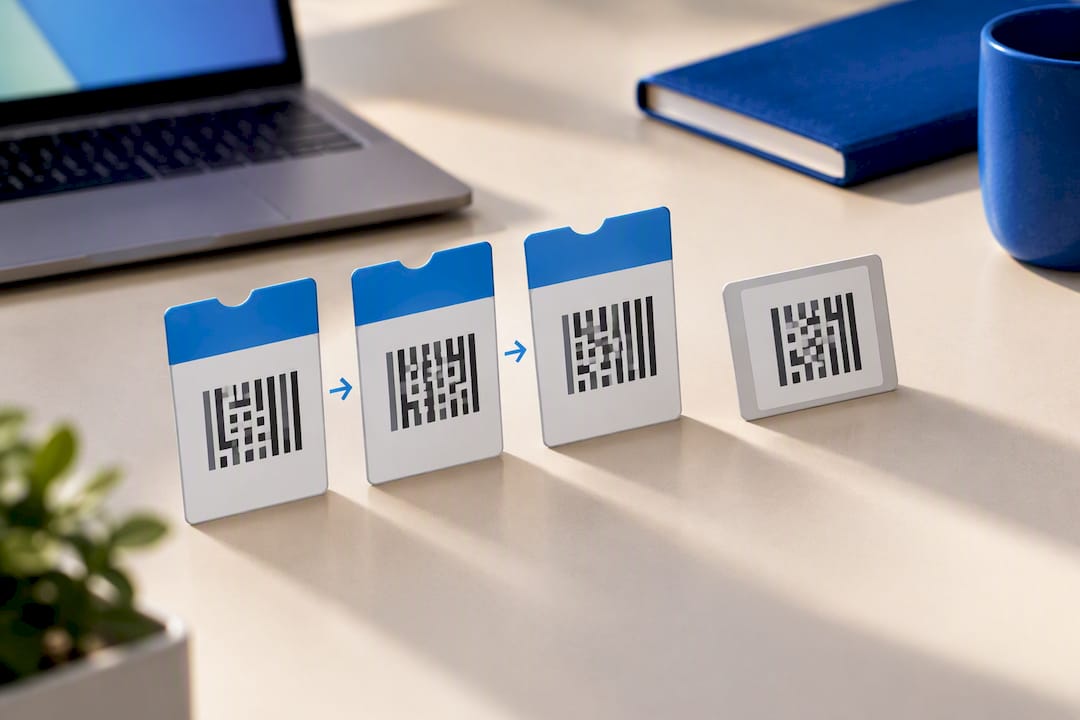
There’s a second layer working against screenshots, too. Many tickets are account-linked, meaning the barcode only activates when it loads inside the app tied to the purchaser’s login. Hand someone a screenshot and the scanner sees a static image with no active session behind it, which is functionally worthless at the door.
This wasn’t always the case. A few years back, screenshots and even printouts worked fine, and that’s exactly the problem. Scalpers and scammers figured out they could sell the same screenshot to multiple buyers, since nothing stopped duplication. Industry reporting traces the shift to dynamic, refreshing codes directly to that fraud pattern. Issuers moved fast because static images were costing venues money and costing fans their nights out.
That’s why the official guidance is consistent across platforms:
Ticketmaster explicitly states screenshots won’t be accepted for entry on moving barcode tickets.
AXS says the same for Mobile ID, requiring access through its app or a supported wallet.
Google Wallet frames adding your pass to Wallet as the safer alternative to relying on your camera roll.
Issuers aren’t being difficult here. A live, refreshing code that only works when tied to your account is what keeps a $200 ticket from getting duplicated and sold five times over.
When a Screenshot Might Actually Work
Not every ticket refreshes, and it helps to know which ones don’t before you assume the worst. Static tickets, the older style instant download PDFs that some smaller venues and theaters still issue, print the same barcode every time. A screenshot of one of those scans exactly like the original, because there’s nothing dynamic to expire.
There’s also a narrow device-specific exception worth knowing about. Some Pixel phones support an “add from screenshot” feature that lets you capture a boarding pass image and have Wallet convert it into a proper pass automatically. It’s a clever shortcut, but it only applies to supported passes on supported hardware, not a general workaround for concert or sports tickets.
Here’s where screenshots reliably fail:
Ticketmaster’s mobile-only tickets with moving barcodes
AXS Mobile ID tickets, which explicitly reject screenshots per its help center
Any account-linked ticket that requires an active app session to validate
If your confirmation email mentions “mobile entry” or “moving barcode,” assume a screenshot won’t get you past the gate.
The Safer Way to Store and Access Your Tickets
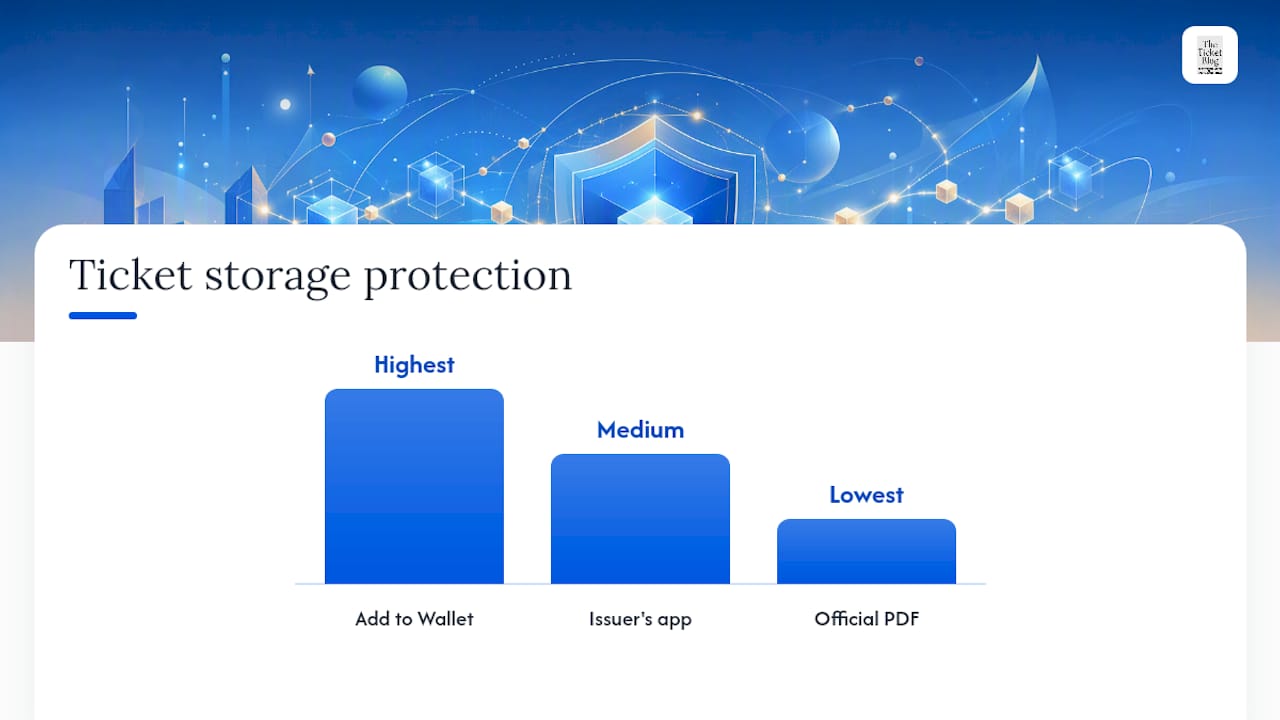
Skip the screenshot and let the platform do what it’s built to do. Three options cover almost every situation, ranked by how much protection they give you.
Add the ticket to Google Wallet or Apple Wallet. Open the confirmation email or the issuer’s app, tap the add-to-wallet option, and the pass syncs directly, refresh codes included. Google’s own Wallet documentation confirms these passes stay usable offline once saved.
Keep the issuer’s app installed and signed in. Ticketmaster and AXS both push real-time updates through their apps, including backup entry flows when a venue’s internet is spotty. This also matters because barcode structures vary by platform, and the app knows how to render whichever one your ticket uses.
Save the official PDF only if it’s explicitly a static, instant-download ticket. Download it directly from the issuer’s site, not a forwarded screenshot, and keep it in a dedicated files app rather than your photo library.
Each of these methods ties your ticket to a refresh token or an account session, the two things that make forgery and duplicate resale nearly impossible. A screenshot has neither.
Pro Tip: Add tickets to your wallet app the moment you buy them, not the morning of the show. Some passes need an active connection the first time you save them, and doing it early means one less thing to troubleshoot in a parking lot with two bars of signal.
Your Pre-Event Phone Checklist
Getting into the venue smoothly is mostly about what you do on your phone before you ever leave the house. Run through this the night before or that morning, while you still have solid Wi-Fi.
Open the issuer’s app and pull up your tickets while you have a strong signal.
Add each ticket to Apple Wallet or Google Wallet, then close the app and check the pass still displays.
Turn off Wi-Fi briefly to confirm the Wallet pass shows up without a live connection.
Double-check you’re signed into the same account linked to the purchase; a mismatched login is one of the most common reasons a pass won’t load.
Charge your phone to at least 80%, and turn brightness up so scanners can read the screen in daylight or low light.
Screenshot your order confirmation email as backup proof of purchase, separate from the ticket itself.
If you’re sending tickets to friends, use the platform’s official transfer feature rather than forwarding a screenshot. Ticketmaster and AXS both support in-app transfers that keep the barcode live for the new holder.
This sequence matters more at mobile-only venues, where there’s no paper backup if something goes wrong. Ticketmaster’s own support material backs the same order of operations: view your tickets before arrival, add them to Wallet, and treat that as done well before you’re standing in line.
Quick Fixes If Your Ticket Won’t Scan
A dead scan at the gate is stressful, but it’s usually fixable in under a minute. Work through these in order before panic sets in.
Sign out and back into the app, and confirm you’re using the account that actually purchased the ticket.
Open the Wallet pass directly instead of the app. Wallet passes sometimes load when an app is glitching.
Ask a staff member to refresh their scanner or check whether the venue has an offline entry mode for connectivity issues.
Pull up your order confirmation email as proof of purchase if the line stalls; most box offices will manually verify from there.
Walk away from anyone near the entrance offering to “fix” your ticket or swap it for theirs. That’s a scam setup, not a solution.
Pro Tip: Screenshot your order confirmation email, not the ticket barcode. It won’t get you past a scanner, but it’s exactly what box office staff need to manually look up your seat if the app is acting up.
Why The Ticket Blog Recommends Wallet Storage Over Screenshots
We’ve walked enough readers through mobile entry headaches to know the pattern: it’s almost always a screenshot or an app logged into the wrong account. Wallet storage and staying signed into the issuer’s app solve both problems at once, which is why our barcode explainer and mobile-only venue guide both push the same workflow. If you’re ever unsure whether a deal or a transfer looks legitimate, our fraud checklist is worth five minutes before you commit.
— The Ticket Blog
Get More Entry Tips and Ticket Deal Alerts
Mobile entry is only one piece of getting to your seat without a headache. If you’ve got tickets to a venue that skips paper entirely, our guide on getting into mobile-only venues walks through exactly what to prep beforehand. And if something about a ticket transfer or a too-good deal feels off, run it through our five-minute fraud checklist before you send anyone money.

This site exists for exactly this kind of practical, no-fluff guidance, alongside deal hunting and promo code coverage. Bookmark The Ticket Blog and check back before your next show for fresh discount codes and venue-specific tips, or browse our latest posts now to see what’s live for upcoming events near you.
Sources
FAQ
Will a Screenshot of a Ticket Work at the Door?
For most modern mobile tickets, no. Platforms like Ticketmaster and AXS use barcodes that refresh every few seconds, so a captured image goes invalid almost immediately. Older static or instant-download tickets are the exception, since their barcode never changes.
Do Screenshots Work for Ticketmaster or AXS Tickets Specifically?
No. Ticketmaster’s moving barcode tickets and AXS Mobile ID both explicitly reject screenshots as an anti-fraud measure. Both issuers require you to access the live ticket through their app or a connected wallet pass.
How Do I Store a Mobile Ticket for Offline Access?
Add the ticket to Apple Wallet or Google Wallet as soon as you buy it, since Wallet passes stay accessible without an internet connection once saved. Keeping the issuer’s app installed and signed in gives you a backup if the Wallet pass has trouble loading.
Is It Against the Rules to Screenshot a Mobile Ticket?
Sharing screenshots of tickets that require account-linked or refreshing barcodes typically violates the issuer’s terms of service, since it enables the duplicate-resale fraud those systems were built to stop. Even where it’s not explicitly against policy, it’s rarely going to work at the scanner anyway.
What’s the Safest Way to Share a Ticket With a Friend?
Use the platform’s official transfer feature instead of forwarding a screenshot. Both Ticketmaster and AXS support in-app transfers that keep the barcode live and properly linked to the new ticket holder’s account.
Recommended


Comments